
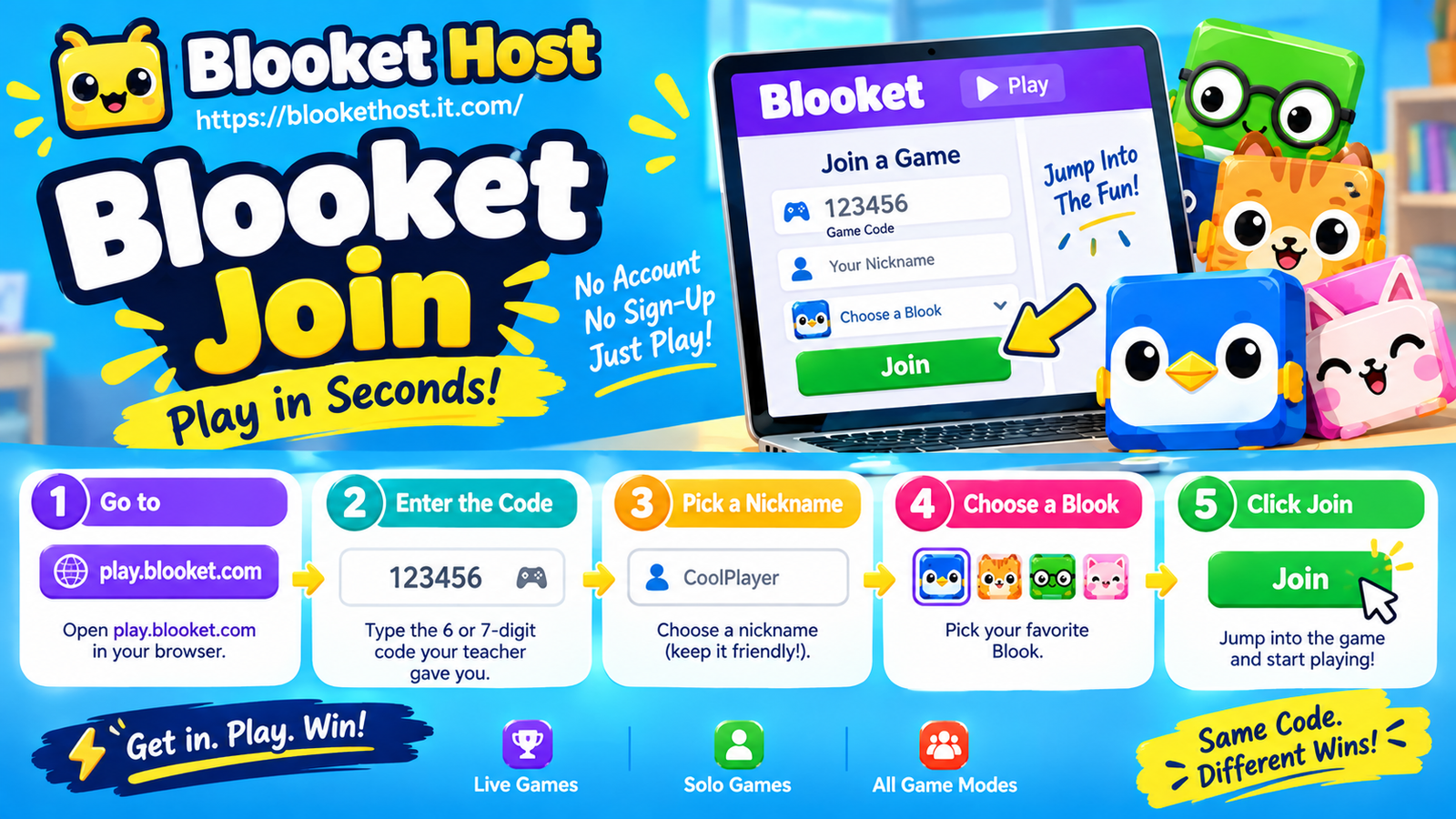
Your teacher says “go to Blooket and enter the code.” Half the class is already playing while you’re still hunting for the right page, unsure if you’re supposed to sign up, log in, or search for something entirely different. Here’s the fix: learning how to join Blooket in 30 seconds really is that fast once you know exactly where to go. Head to play.blooket.com, type the code you were given, pick a nickname, choose a Blook, and click Join. No account, no sign-up. Here’s the full breakdown so you’re never the last one sitting in the lobby again.
Why Joining Feels More Confusing Than It Should
Part of the problem is that Blooket has more than one entry point, and if you land on the wrong one, you’ll end up staring at a login screen wondering why it’s asking for a password when your friends already have Blooks bouncing around their screen. The login page (id.blooket.com) is for teachers and hosts managing accounts. The join page (play.blooket.com) is for players — and that’s the one you want almost every time your teacher tells you to “join a Blooket game.”
Once you know that distinction, the rest takes about as long as it does to read this sentence.
The 30-Second Join Process
Here’s the entire process, start to finish:
- Go to play.blooket.com. Type it directly into your browser’s address bar — don’t search for it, since search results can sometimes lead you to outdated pages or unrelated sites.
- Enter the Game ID. This is the code your teacher or host is displaying — usually a short string of numbers shown on the board, screen, or shared link.
- Pick a nickname. Choose something you’ll recognize in the player list, especially if your teacher is tracking participation by name.
- Choose a Blook. This is your in-game character/avatar for the session — purely cosmetic, so pick whichever one you like.
- Click Join. You’re in the lobby, and you’ll see other players populating the screen until the host starts the game.
That’s genuinely the whole process. No account creation, no email confirmation, no password to remember.
Where People Get Stuck
Even with a process this short, a few specific moments trip people up consistently:
Going to the wrong website
This is by far the most common issue. If you type “Blooket” into a search engine instead of navigating directly to play.blooket.com, you can end up on an unofficial site, an outdated bookmark, or the login page instead of the join page. Typing the URL directly avoids this entirely.
Mistyping the Game ID
Game codes are short, but that also means a single mistyped digit sends you to an error message instead of the lobby. Double-check the code against what’s displayed before hitting enter — especially numbers that look similar, like 0 and O, or 1 and 7 depending on the font being displayed.
Entering an expired code
Game codes are only active while the host’s session is live. If the host ends the game or hasn’t started one yet, the code won’t work — this isn’t a problem with what you typed, it just means the session isn’t running yet.
Overthinking the nickname/Blook step
Some players hesitate here, treating it like an account setup step. It’s not — your nickname and Blook choice are just for that session, so there’s no need to deliberate.
What Happens After You Join
Once you’re in the lobby, you’ll typically see:
- A live list of other players joining the same session.
- Your chosen nickname and Blook displayed on screen.
- A waiting state until the host manually starts the game.
From here, the game itself begins as soon as the host clicks start, and you’ll be dropped straight into whatever mode they’ve selected — no further setup needed on your end.
Do You Ever Need an Account to Join?
For the overwhelming majority of live game sessions, no. Joining a hosted game through play.blooket.com is designed specifically to be account-free, since requiring sign-ups would slow down exactly the kind of quick classroom setup Blooket is built for.
The only time you’d need a full account is if you’re planning to host your own games, save question sets, or access teacher-side tools — in which case you’d be looking at id.blooket.com instead, which is a completely separate process from simply joining.
Joining on Mobile vs. Desktop
The join process is nearly identical whether you’re on a phone, tablet, or computer:
- On desktop or laptop: navigate to play.blooket.com in any modern browser and follow the same steps above.
- On mobile: the mobile browser experience works the same way, though smaller screens mean double-checking your entered code is especially important, since typos are more common on mobile keyboards.
There’s no dedicated app required to join a game — the browser-based join page works across devices without installation.
Troubleshooting a Failed Join
If you’ve followed the steps above and still can’t get in, check these in order:
- Confirm the code is correct by asking the host to repeat or redisplay it.
- Confirm the session is live — if the host hasn’t started it yet, wait rather than assuming something’s broken.
- Refresh the page if it seems frozen or unresponsive after entering the code.
- Try a different browser if the page fails to load properly at all.
- Check your internet connection, especially on shared classroom WiFi that can get congested with an entire class joining simultaneously.
The Bottom Line
Once you know that play.blooket.com is your destination — not a login page, not a search result, not an app download — joining a game really does take about 30 seconds: code, nickname, Blook, join. The confusion almost always comes from landing in the wrong place, not from the process itself being complicated. Bookmark play.blooket.com if you’re a regular player, and you’ll never be scrambling to catch up while the rest of the class is already three questions in.